OpenChat for Linux - OpenAi chat by Snippetsupply.com
Free
Latest version
1.0.0
File size
75 MB
SHA256:
8c878d582868afef1d7f7031d51e780a8535264cb827b55e12f73b326379fcefDirect download. No Stripe checkout.
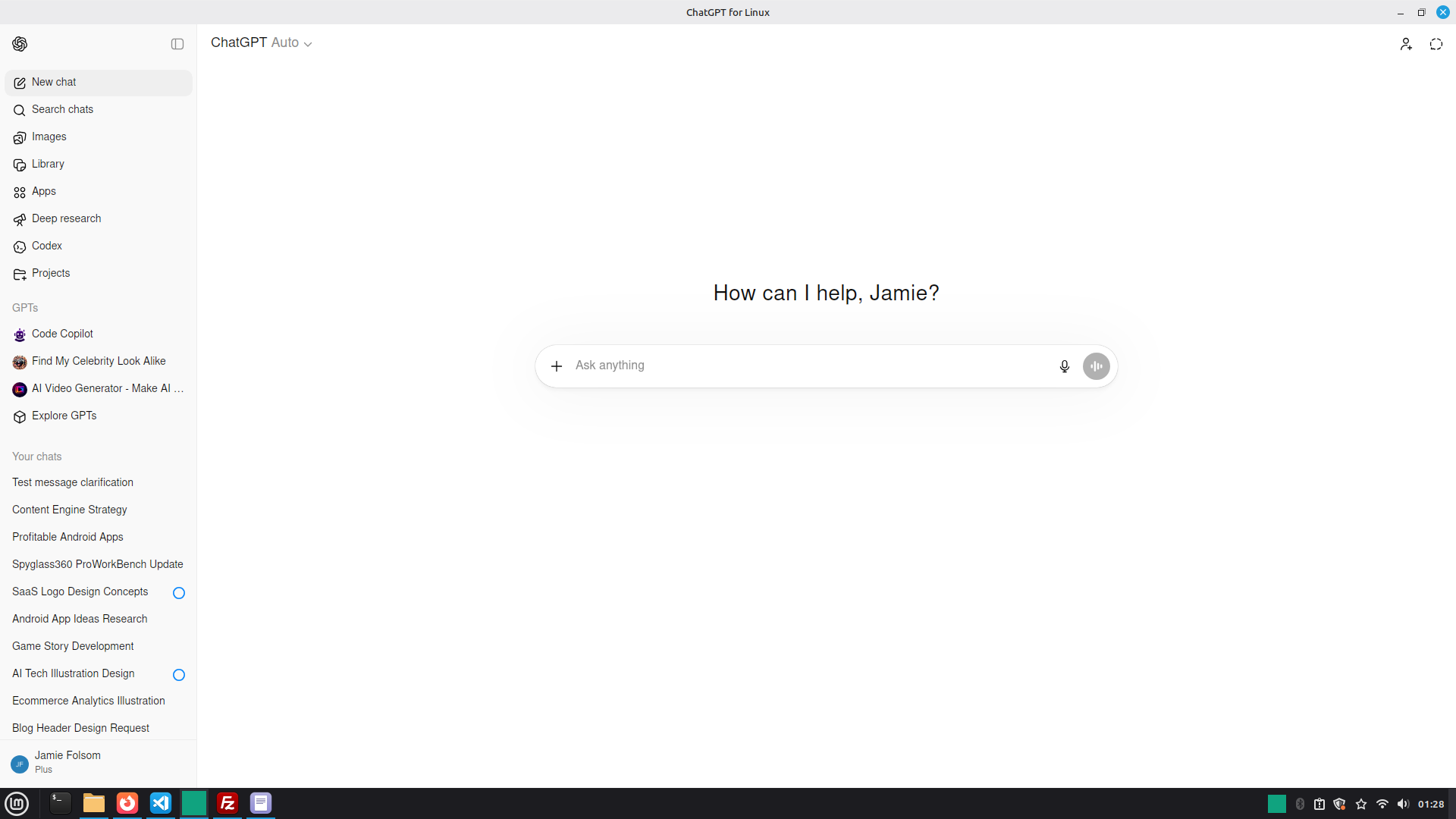
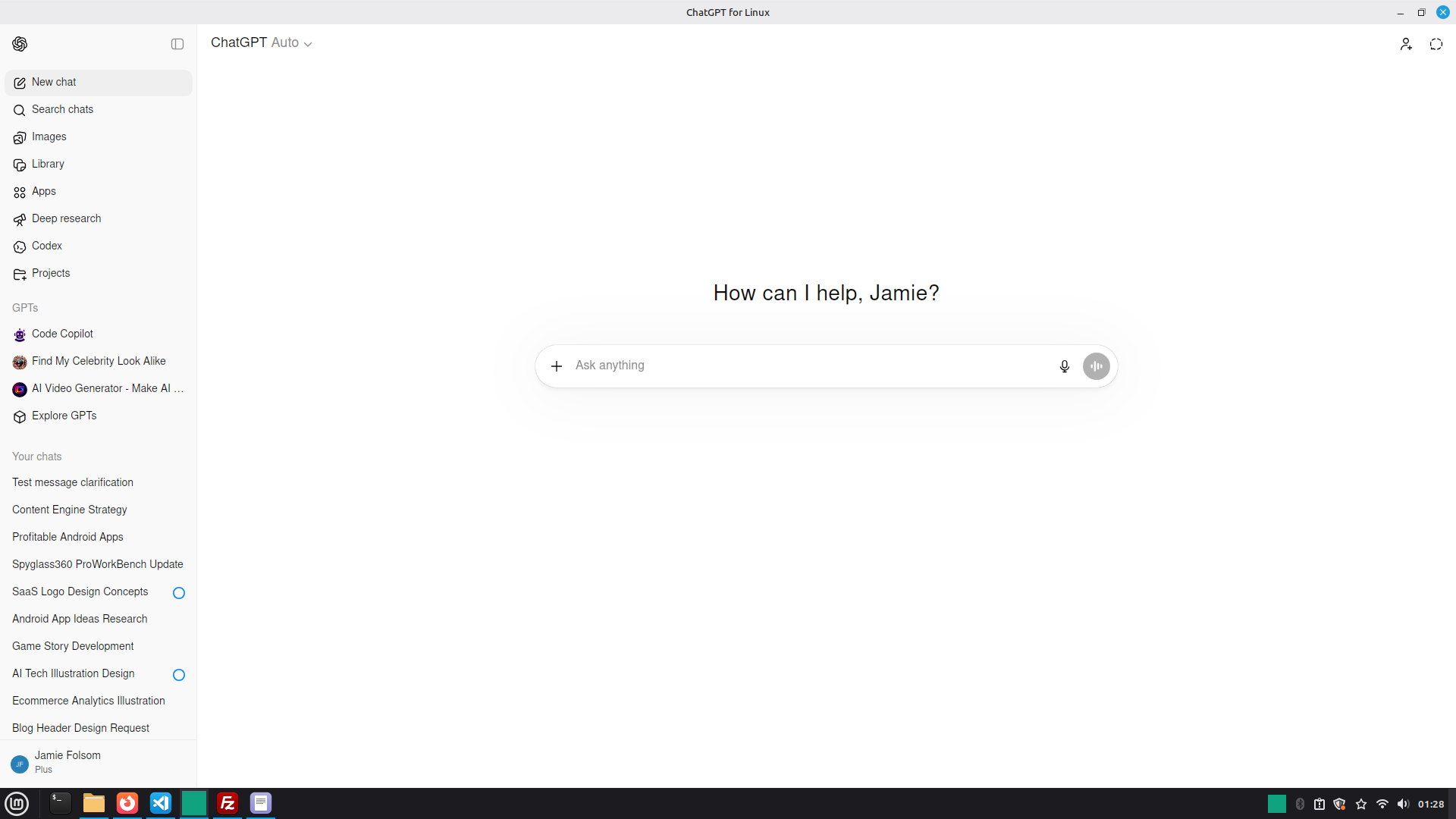
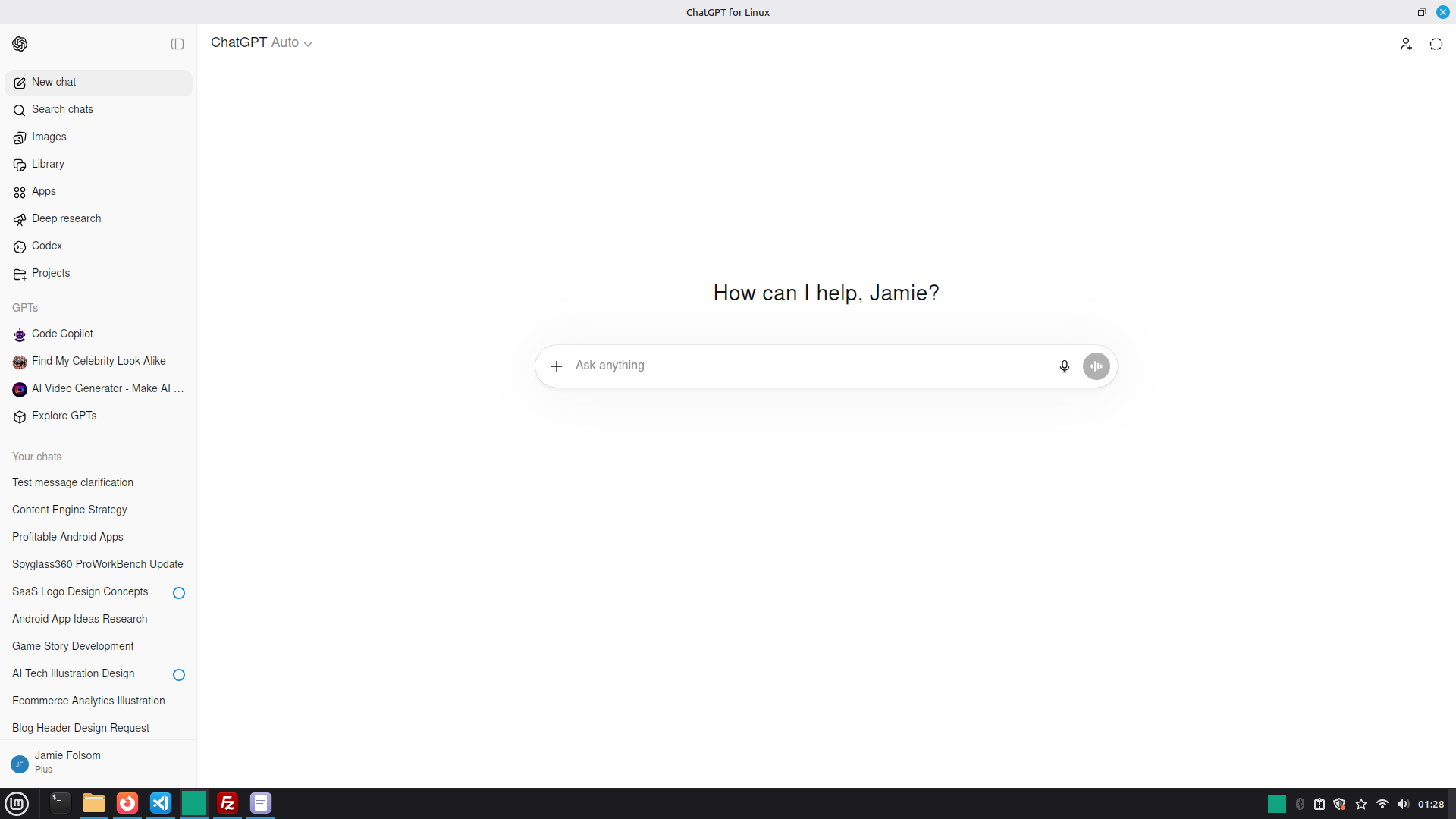
ChatGPT on Linux with smooth scrolling, low RAM use, and long-chat performance optimizations.
ShareDetails
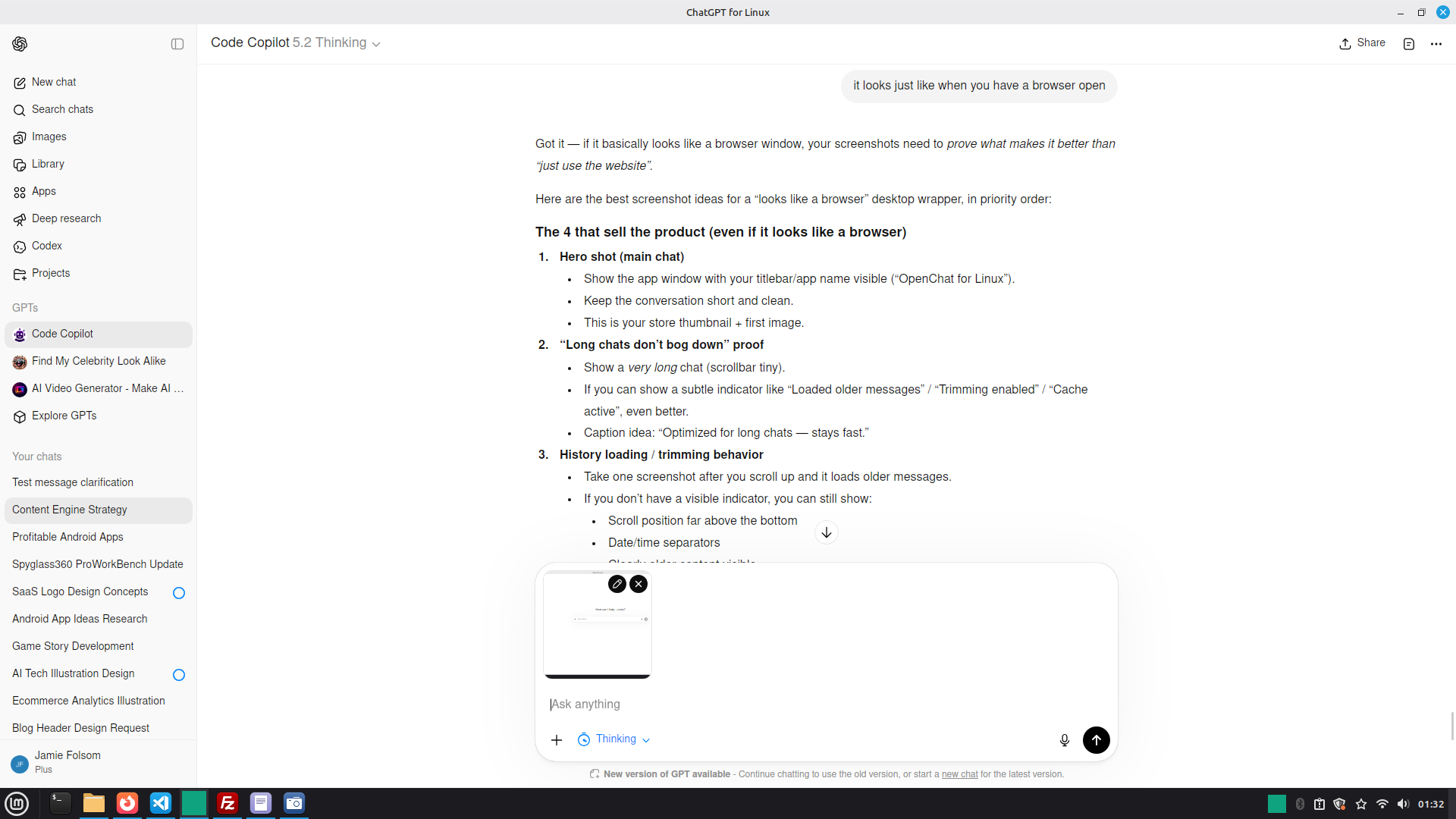
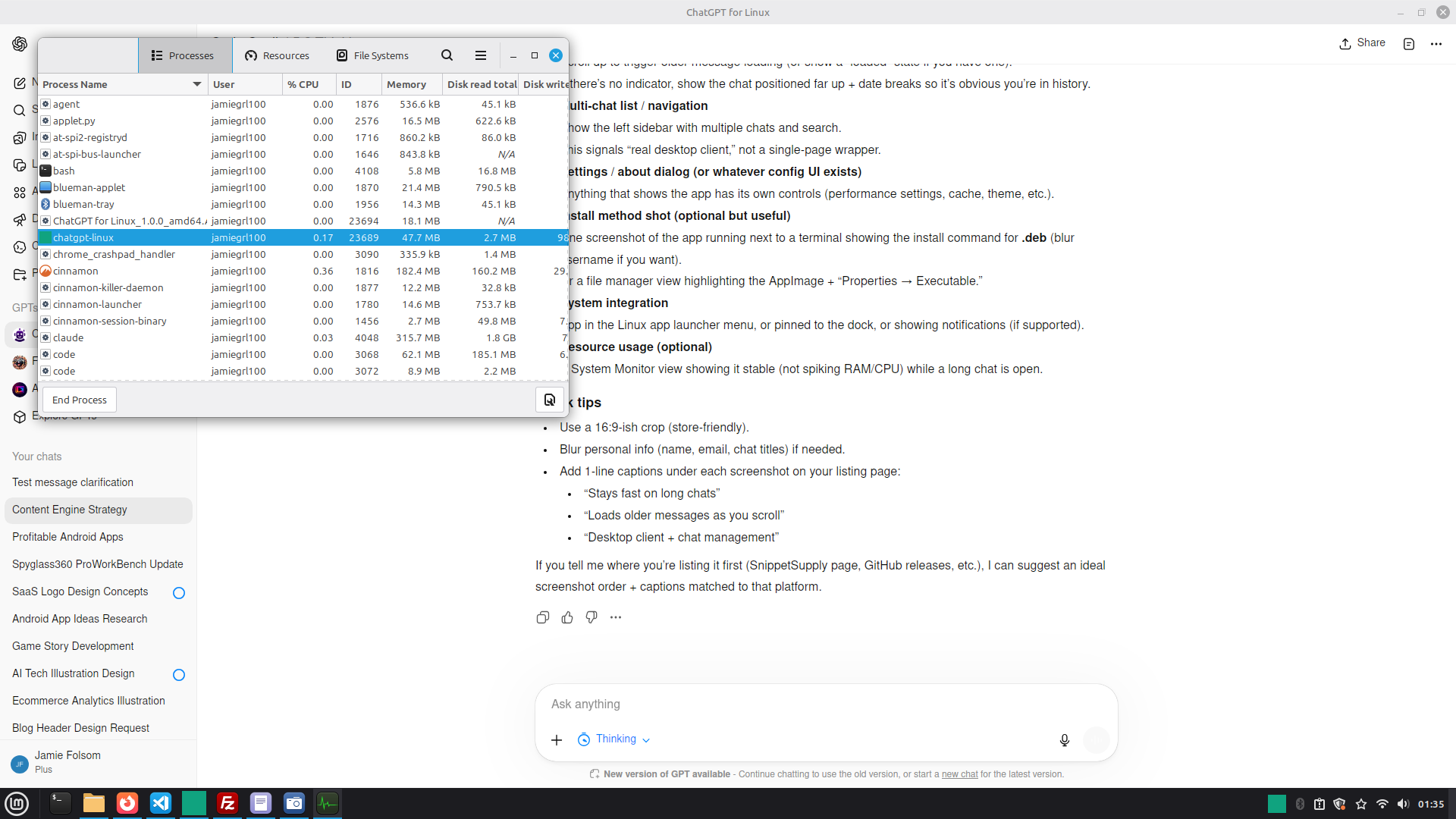
OpenChat for Linux is a lightweight desktop client for OpenAI Chat (ChatGPT) built for Linux users who want a dedicated app instead of living in a browser tab. It’s designed to stay responsive even in very long conversations by smart-loading chat history as you scroll and trimming the live DOM window so performance doesn’t degrade over time. In typical use, it remains extremely memory-efficient (often tens of MB, even with long chats open).
# OpenChat for Linux — Install Instructions
## Option A — AppImage (recommended, works on most distros)
1. Download: `OpenChat for Linux_1.0.0_amd64.AppImage`
2. Make it executable:
```bash
chmod +x "OpenChat for Linux_1.0.0_amd64.AppImage"
```
3. Run it:
```bash
./"OpenChat for Linux_1.0.0_amd64.AppImage"
```
**Tip:** If your file manager supports it, you can also right-click → Properties → Permissions → “Allow executing”.
---
## Option B — Ubuntu/Debian (.deb)
1. Download: `OpenChat for Linux_1.0.0_amd64.deb`
2. Install:
```bash
sudo apt install ./OpenChat\ for\ Linux_1.0.0_amd64.deb
```
3. Launch from your applications menu, or run:
```bash
openchat-for-linux
```
(If the command name differs, just launch it from your app menu.)
---
## Option C — Generic tarball (portable)
1. Download: `openchat-linux-1.0.0-x86_64.tar.gz`
2. Extract:
```bash
tar -xzf openchat-linux-1.0.0-x86_64.tar.gz
```
3. Enter folder and run:
```bash
cd openchat-linux-1.0.0-x86_64
./openchat
```
(Exact folder/binary name may differ depending on how the tarball was packaged — run `ls` to see the executable.)
---
## Option D — Arch Linux (AUR)
### D1) AUR binary package (recommended for “no source” installs)
This PKGBUILD downloads the prebuilt release from SnippetSupply and installs it.
1. Download the **AUR binary** package files (PKGBUILD) from the `aur/` folder (or the zipped AUR bundle if you provide it).
2. Build/install:
```bash
makepkg -si
```
### D2) AUR source package (requires source build)
Only use this if you are intentionally publishing source builds.
If you don’t want to open-source, **don’t publish this**.
---
## Option E — Nix / NixOS
If you provide `flake.nix`:
1. Download the `flake.nix` (and any required files alongside it, if applicable).
2. From the folder containing the flake:
```bash
nix build
```
3. Run the result:
```bash
./result/bin/openchat
```
(If the output name differs, check `ls result/bin`.)
---
## Option F — Fedora/RHEL/OpenSUSE (RPM)
If you have a built `.rpm`, users can install it like this:
**Fedora/RHEL:**
```bash
sudo dnf install ./openchat-linux-1.0.0.x86_64.rpm
```
**openSUSE:**
```bash
sudo zypper install ./openchat-linux-1.0.0.x86_64.rpm
```
If you only have a `.spec` file (not a built rpm), that’s for packagers/builders, not normal users.
---
## Option G — Snap (Ubuntu / Snap-enabled distros)
If you publish to the Snap Store:
```bash
sudo snap install openchat-for-linux
```
If you provide a local `.snap` file:
```bash
sudo snap install --dangerous ./openchat-for-linux_1.0.0_amd64.snap
```
If you only provide `snapcraft.yaml`, that’s for builders.
---
## Option H — Flatpak (manifest / builders only)
Since you are **not publishing to Flathub**, this is for advanced users.
1. Install flatpak tools:
```bash
sudo apt install flatpak flatpak-builder
```
2. Build from the manifest (example):
```bash
flatpak-builder build-dir com.snippetsupply.openchat.yml --user --install --force-clean
```
3. Run:
```bash
flatpak run com.snippetsupply.openchat
```
(If your manifest filename differs, swap it in.)
---
## Verify downloads (recommended)
After downloading, users can verify the release checksum:
```bash
sha256sum -c SHA256SUMS.txt
```
---
## Troubleshooting
### “AppImage won’t run”
Try:
```bash
sudo apt install fuse3
```
Then run the AppImage again.
### “I installed the .deb but don’t see it”
Try launching from terminal:
```bash
openchat-for-linux
```
Or search the app menu for “OpenChat”.
# OpenChat for Linux — Install Instructions
## Option A — AppImage (recommended, works on most distros)
1. Download: `OpenChat for Linux_1.0.0_amd64.AppImage`
2. Make it executable:
```bash
chmod +x "OpenChat for Linux_1.0.0_amd64.AppImage"
```
3. Run it:
```bash
./"OpenChat for Linux_1.0.0_amd64.AppImage"
```
**Tip:** If your file manager supports it, you can also right-click → Properties → Permissions → “Allow executing”.
---
## Option B — Ubuntu/Debian (.deb)
1. Download: `OpenChat for Linux_1.0.0_amd64.deb`
2. Install:
```bash
sudo apt install ./OpenChat\ for\ Linux_1.0.0_amd64.deb
```
3. Launch from your applications menu, or run:
```bash
openchat-for-linux
```
(If the command name differs, just launch it from your app menu.)
---
## Option C — Generic tarball (portable)
1. Download: `openchat-linux-1.0.0-x86_64.tar.gz`
2. Extract:
```bash
tar -xzf openchat-linux-1.0.0-x86_64.tar.gz
```
3. Enter folder and run:
```bash
cd openchat-linux-1.0.0-x86_64
./openchat
```
(Exact folder/binary name may differ depending on how the tarball was packaged — run `ls` to see the executable.)
---
## Option D — Arch Linux (AUR)
### D1) AUR binary package (recommended for “no source” installs)
This PKGBUILD downloads the prebuilt release from SnippetSupply and installs it.
1. Download the **AUR binary** package files (PKGBUILD) from the `aur/` folder (or the zipped AUR bundle if you provide it).
2. Build/install:
```bash
makepkg -si
```
### D2) AUR source package (requires source build)
Only use this if you are intentionally publishing source builds.
If you don’t want to open-source, **don’t publish this**.
---
## Option E — Nix / NixOS
If you provide `flake.nix`:
1. Download the `flake.nix` (and any required files alongside it, if applicable).
2. From the folder containing the flake:
```bash
nix build
```
3. Run the result:
```bash
./result/bin/openchat
```
(If the output name differs, check `ls result/bin`.)
---
## Option F — Fedora/RHEL/OpenSUSE (RPM)
If you have a built `.rpm`, users can install it like this:
**Fedora/RHEL:**
```bash
sudo dnf install ./openchat-linux-1.0.0.x86_64.rpm
```
**openSUSE:**
```bash
sudo zypper install ./openchat-linux-1.0.0.x86_64.rpm
```
If you only have a `.spec` file (not a built rpm), that’s for packagers/builders, not normal users.
---
## Option G — Snap (Ubuntu / Snap-enabled distros)
If you publish to the Snap Store:
```bash
sudo snap install openchat-for-linux
```
If you provide a local `.snap` file:
```bash
sudo snap install --dangerous ./openchat-for-linux_1.0.0_amd64.snap
```
If you only provide `snapcraft.yaml`, that’s for builders.
---
## Option H — Flatpak (manifest / builders only)
Since you are **not publishing to Flathub**, this is for advanced users.
1. Install flatpak tools:
```bash
sudo apt install flatpak flatpak-builder
```
2. Build from the manifest (example):
```bash
flatpak-builder build-dir com.snippetsupply.openchat.yml --user --install --force-clean
```
3. Run:
```bash
flatpak run com.snippetsupply.openchat
```
(If your manifest filename differs, swap it in.)
---
## Verify downloads (recommended)
After downloading, users can verify the release checksum:
```bash
sha256sum -c SHA256SUMS.txt
```
---
## Troubleshooting
### “AppImage won’t run”
Try:
```bash
sudo apt install fuse3
```
Then run the AppImage again.
### “I installed the .deb but don’t see it”
Try launching from terminal:
```bash
openchat-for-linux
```
Or search the app menu for “OpenChat”.
Features
- Optimized for long chats — avoids the “browser tab gets slower over time” problem
- Smart history loading — loads older messages as you scroll
- Low resource usage — lightweight desktop footprint
- Native desktop packaging — AppImage, .deb, and additional Linux formats available
- OpenAI-focused — built specifically for OpenAI Chat use
- Note: This is an unofficial Linux desktop client and is not affiliated with OpenAI.
Versions
1.0.0
SHA256:
8c878d582868afef1d7f7031d51e780a8535264cb827b55e12f73b326379fcefReviews
Log in to leave a review.